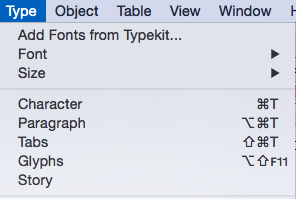
This is quite easy. Firstly find your font. There are many sources, but two main ones if you are reluctant to spend money - although it should be noted that paid-for fonts are nearly always superior to free ones.
Typekit, although it seems free is part of your Creative Cloud subscription, so isn't really free, is covered in this post.
Free fonts from everywhere on the web
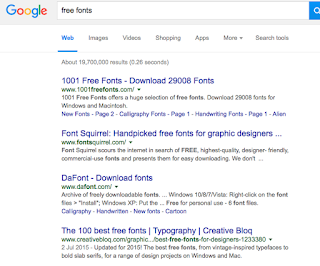
Firstly you need to find your font. If all you have is a name, then that's going to be difficult as you may be looking for a similar font that has a different name. Most sites give you a preview and the top ones you find in Google - as shown here are usually safe. Note the use of the word "usually"; you should never attempt this if the computer you are using doesn't have some form of active threat management. (College computers do.) I usually use Dafont to start.
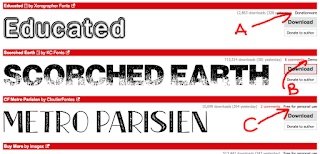
Here I am in DaFont. I'm looking for a distressed font - DaFont calls these eroded. The three pictured here have various rights the authors are allowing you. It's important that you realise that you could be on the wrong end of a copyright dispute if you don't adhere to the terms. Don't say I'll never get caught; people do and end up out of pocket. (Also note there are differences between USA and EU/UK law on copyright - in a nutshell it's easier to get you here.)
In the picture:
A. Is OK to use commercially if you make a donation (and it's usually small) to the author.
B. This is a demo. The font will have all kinds of restrictions - probably best avoided.
C. OK for non-commercial use. May have technical restrictions - you should check before use.

When you click download (On a Mac and using safari, other computers/browsers will differ) you will get a zipped file. This will expand to give you a folder.

When the folder is expanded you may find the following in it:
- Read me file - see below
- Two image files
- The font itself. In this case it's an OTF - Open Type Font that will work on Macs and PCs.
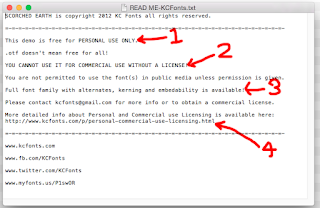
This is the Read me file. It contains a number of bits of info which in this case render the font unsuitable for use without paying a fee - exactly what the author intended no doubt. These are:
- You can only use this for personal use - assume this means college as well as purely personal.
- Insisting you should pay if you want it in any type of commercial setting. Fair enough.
- Killer line. As this is a demo, the glyph set is minimal. no kerning table is present and you can't embed the font. That means you can't use it properly in Illustrator, make it into a PDF, or use it in any application where fonts need to become part of the document.
- Where you go for more information on licensing.
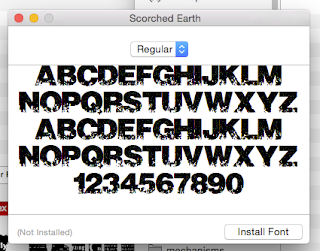
Installing the font on a Mac. Double click, it will open as you see here. Click install font.
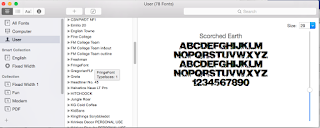
Font Book will open. It will check the font for suitability and see if there is a duplicate. IMPORTANT!! Strongly suggest you abandon if it flags an issue. Ignore these messages and you are only storing up woe for yourself.
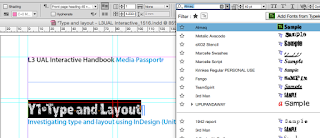
Now your font is ready for use. Go to InDesign and check the fonts list it should be there.
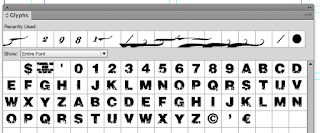
Have a look in the Glyphs panel. Here we can see the full glyph set for this font. As you can see in the picture here - and by comparing it with other fonts there's a lot of glyphs missing. This will give you woe when you use the font if you are not careful.
Here you cab see the effect of the missing Glyph. There's no bullet, so InDesign has used the substitute character.
Having said all of that most free fonts are OK, expect the "@" symbol, pound signs, and lowercase letters to missing and don't use them for important work unless throughly tested.
If you *do* get stuck, there's an escape route - possibly. More about that in another blog post...
 In the process of looking I found this little chart at https://jasonthibault.com/comic-book-fonts/
 In addition to the free for small press commercial use, I've also been looking at Paid fonts. Overall I looked at about 20, narrowed that down, drew up a chart to help narrow it down further and ended up the ones below. Prices are 25-30 Dollars, so that's not going to be a factor. I guess I should look at Adobe's typeset, but I don't recall having seen anything.